

Spaces
Give each team or project its own area of the organization, with its own documents, members, and access.
How spaces work
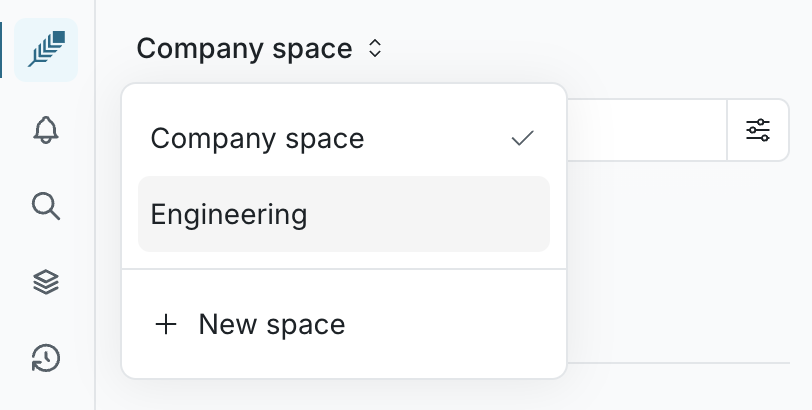
Section titled “How spaces work”Every organization starts with one Company space, which holds all published company documents. A space is an additional area alongside it, such as Engineering, Design, or a single customer project, with its own document tree.
The left nav shows one space at a time. Switching spaces swaps the whole tree, so you only see the documents that belong to the space you’re in.
Prerequisites
Section titled “Prerequisites”Only organization owners can create, convert, and archive spaces. Members can work inside any space they have access to.
Switch spaces
Section titled “Switch spaces”Use the space switcher at the top of the left nav. Pick a space to scope the tree to it, or pick Company space to go back to the default.
Switching takes you to your home page, since whatever document you had open belongs to the space you just left.
Create a space
Section titled “Create a space”-
In the space switcher, click New space.
-
Give the space a name.
-
Choose who can reach it under Access:
Access Who gets in Everyone in the organization All org members can view and edit Invited members Only people you add; the space is hidden from everyone else -
Click Create space.
Falconer switches you into the new space and opens its page, where you can add members and start filing documents.
Note: A restricted space is invisible to non-members. Its documents don’t appear in their search results or in answers from the Falcon agent.
Manage a space
Section titled “Manage a space”You can manage a space from the settings icon next to the space switcher.
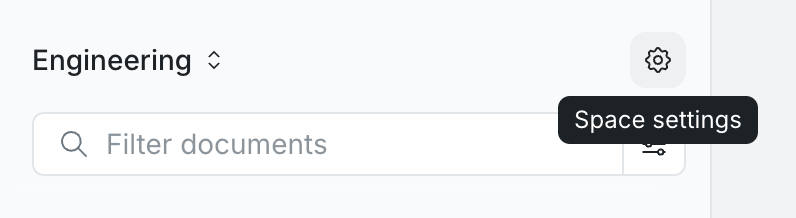
From there you can rename it, change who can access it, and add or remove members — the same access controls as any folder, applied to everything inside the space.
Convert a folder into a space
Section titled “Convert a folder into a space”An existing company folder can be promoted to a space.
-
Open the folder.
-
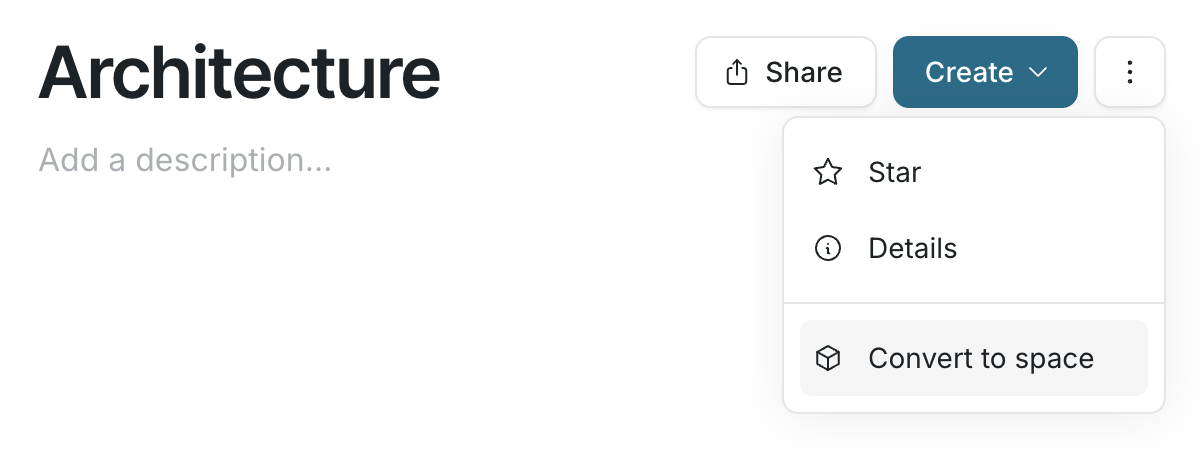
From the folder menu, choose Convert to space.
-
Confirm.
Converting can’t be undone, so make sure the folder is really the root of the area you want.
Move documents between spaces
Section titled “Move documents between spaces”Move a document via Move or Publish, then pick a destination space in the move dialog.
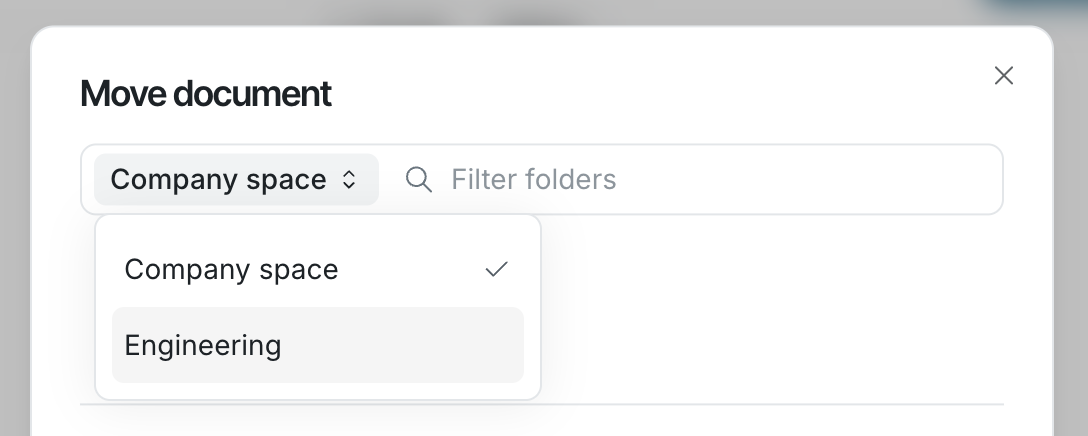
Falconer asks you to confirm when a move widens org-wide visibility — publishing private content into a space, or moving from a restricted space into one that’s open to the whole organization.
Archive a space
Section titled “Archive a space”From the space page, choose Archive space.
The documents inside are archived along with it and drop out of search. They stay available under Archived if you need them back.