Invite teammates and manage permissions
Get your team into Falconer and control what they can see and edit.
Organization roles
Section titled “Organization roles”Falconer has two roles at the organization level:
| Role | What they can do |
|---|---|
| Owner | Invite and remove members; manage org settings; change document permissions |
| Member | Create and edit documents; access published company content |
Invite teammates
Section titled “Invite teammates”Only owners can invite new members. If you don’t see the option to invite a teammate, ask your org owner to send the invite.
-
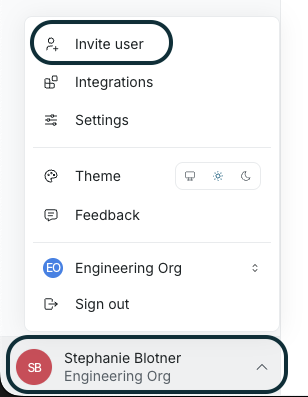
In the bottom left, go to Your org name -> Invite user.
-
Enter your teammate’s email address and select a role.
-
Click Invite.
Falconer sends the teammate an invite link valid for 7 days. Once they accept, they’re added as a member of your organization and can access all published company documents.
Set document-level permissions
Section titled “Set document-level permissions”Each document has its own permission settings, which override the org-wide defaults. There are four permission levels:
| Level | What it allows |
|---|---|
| View | Read-only access |
| Comment | Can view and leave comments |
| Edit | Full editing rights and can share the document with others |
| Owner | Same as edit, plus gets notified for document reviews and can configure auto-update settings |
Share a document with specific people
Section titled “Share a document with specific people”To share a document:
- Open the document and type /Share anywhere. Or Click … -> Share in the top right.
- Enter the person’s name or email.
- Select their permission level and click Send.
Share a document with your whole organization
Section titled “Share a document with your whole organization”To share a document with everyone in your organization:
- Open the document and type /Share anywhere. Or Open the document and click … -> Share in the top right.
- Under General access, change the access setting for your org.
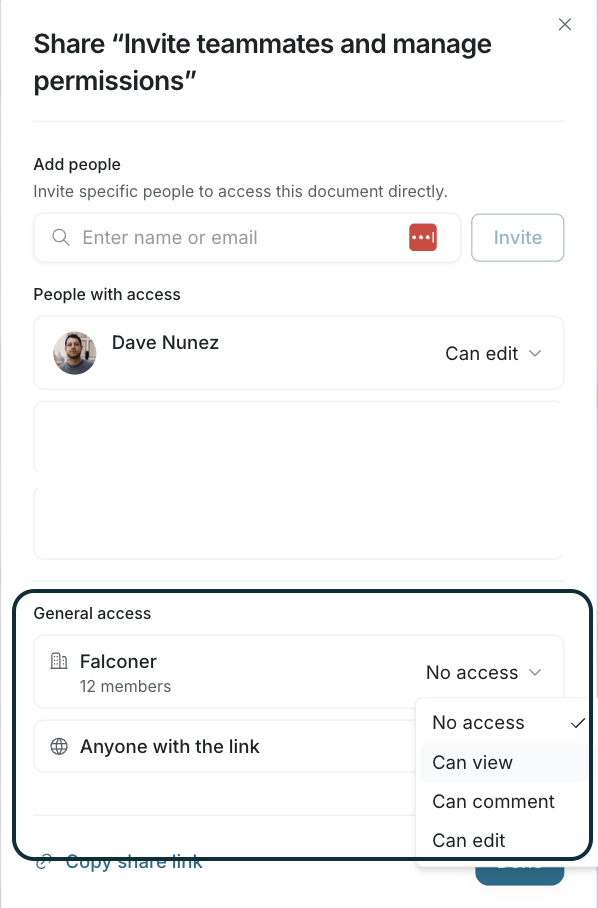
Note: Sharing org-wide grants access but doesn’t move the document to Company documents. Teammates can open it if they have the link, but it won’t appear in Falcon’s search results or Q&A answers. To make a document discoverable, publish it instead.
Publish to the company collection
Section titled “Publish to the company collection”Documents start in your Private collection, visible only to you. To make a document searchable and visible across your organization:
-
Click Publish at the top of the document.

-
Choose a location in the company collection. Falconer suggests one based on the content.
Published documents are accessible to all org members and surfaced by Falconer in search and Q&A.
Access requests
Section titled “Access requests”If a teammate tries to open a document they don’t have access to, they’ll see a Request Access button. This sends a Slack notification to the document owner, who can grant access directly from Slack — either for that individual or for the whole org.
Permissions and the Falcon agent
Section titled “Permissions and the Falcon agent”The Falcon agent only surfaces documents the requesting user has permission to see. Private drafts and documents with restricted access won’t appear in search results or agent answers for users who don’t have access.