

Connect sources
Connect your tools to Falconer to enable code-aware search, AI-powered documentation.
Connecting a source takes a few clicks. Connect GitHub and start asking questions and writing docs about your codebase in minutes.
Connect from a conversation
Section titled “Connect from a conversation”If you are already talking to Falcon, ask it to connect the source you need, for example, Connect Linear. Falcon shows a connection card in the conversation. Choose Connect, complete the provider’s authorization, and return to the conversation to continue your request. Some sources ask you to choose resources or enter setup details before they are ready. Connect integrations with Falcon walks through this path.
Personal connections belong to your account. Connecting an organization source requires permission to manage integrations in Falconer and any authorization required by the provider. If you do not have that access, ask your organization owner to connect it.
Prerequisites
Section titled “Prerequisites”- For an organization source, permission to manage integrations in Falconer and authorization to connect the source, which may require provider admin access.
- For a personal connection, access to your own account with that provider. You do not need organization integration-management permission for a personal connection.
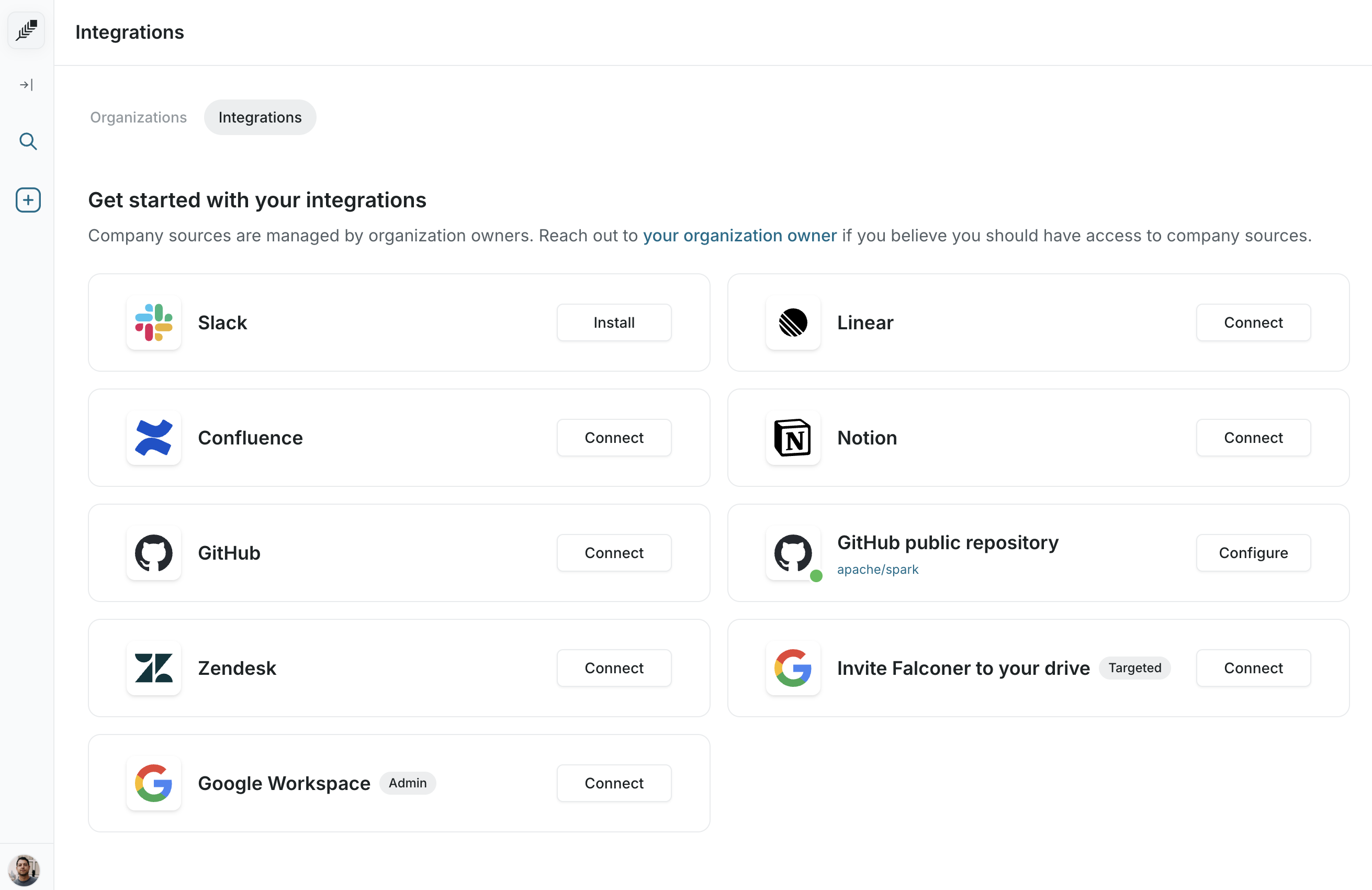
- Navigate to Integrations from the bottom-left menu.
- Click Connect next to the source you want to add.
- Authorize Falconer to access your account on the third-party provider’s page.
- Select the specific resources you want to sync (for example, individual GitHub repositories or Confluence spaces).
- Falconer begins syncing immediately. Initial indexing typically completes within minutes.
Supported sources
Section titled “Supported sources”Each source has its own setup page with what’s synced, what you can do, and how to connect. Browse them all in Integrations.
See which integrations are available for your plan on the pricing page.
Connection states
Section titled “Connection states”Each source card on the Integrations page shows a button that reflects its current state. A green dot on a source card means it’s actively connected and syncing. Sources also display a “Last synced” timestamp so you can confirm data is up to date.
| Button | Meaning |
|---|---|
| Connect / Install | The source isn’t connected yet. Click to start the authorization flow. Slack shows “Install” instead of “Connect.” |
| Configure | The source is connected and has additional settings. Click to manage which repositories, spaces, or other resources are synced (used by GitHub, Confluence, and Zendesk). |
| Reconnect | The source is connected but uses the default action. Click to re-authorize if your token expired or permissions changed (used by Linear and Notion). |
| Disconnect | The source is connected and can be removed. Click to revoke access and uninstall (used by Slack). |
| Instructions | The source requires manual setup outside Falconer. Click to view step-by-step configuration instructions (used by Google Drive’s targeted connection). |